Kinsta
Best for: Hands-off business WordPressPros
- Google Cloud infrastructure
- Polished MyKinsta dashboard
- Staging and backups built in
Cons
- Priced by visits; watch limits
WP Engine
Best for: Agencies, established sitesPros
- Dev/staging/prod environments
- Genesis themes included
Cons
- Some features are paid add-ons
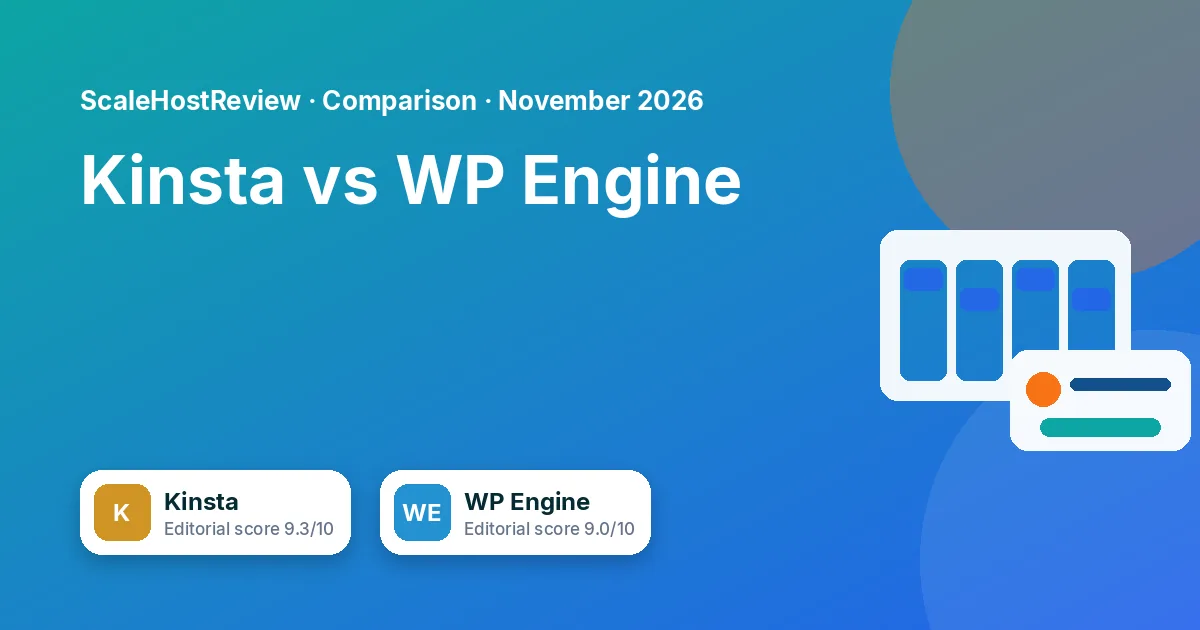
| Kinsta | WP Engine | |
|---|---|---|
| Infrastructure | Google Cloud | Multiple cloud providers (check current details) |
| Dashboard | MyKinsta (custom) | WP Engine User Portal |
| Plan limits | Sites, monthly visits, storage | Sites, visits, storage, bandwidth |
| Extras | Edge caching, APM tool | Genesis themes, Smart Plugin Manager (add-on) |
Plans and prices change. Check current pricing on the official page: kinsta.com/pricing/.
Plans and prices change. Check current pricing on the official page: wpengine.com/plans/.
Who should pick which
Kinsta suits owners who want a clean dashboard and a single-provider stack. WP Engine suits agencies that like its developer tooling and theme ecosystem. Check how each plan counts visits, because overage pricing is where costs surprise people.
Compare Kinsta plans →Official site, not an affiliate link
Compare WP Engine plans →Official site, not an affiliate link
How this page was made: from each provider's official product and pricing pages and its public documentation, read on the date named in the page. We have not run a hands-on test, lab benchmark, or paid user study for this page. A step-by-step section describes the vendor's published flow. It is not a test we performed.
Kinsta pricing
| Plan | Monthly | Sites | Monthly visits |
|---|---|---|---|
| Single 35k | $35 (first month free) | 1 | 35,000 |
| Single 65k | $50 | 1 | 65,000 |
| Single 125k | $90 | 1 | 125,000 |
| Single 315k | $170 | 1 | 315,000 |
| WP 2 | $70 | 2 | Shared across sites (check page) |
| WP 5 | $115 | 5 | Shared across sites (check page) |
| WP 10 | $225 | 10 | Shared across sites (check page) |
| Agency 20 | $340 | 20 | Shared across sites (check page) |
| Enterprise | From $500 | Custom | Custom |
Kinsta counts a visit as a unique IP address within 24 hours. Going over your plan's visits or storage triggers overage fees, with alerts at 80% and 100%. Plans include free unlimited migrations, daily backups with 14 to 30 days of retention depending on plan, and a 30-day money-back guarantee.
The table below is the plan list we recorded in October 2026. On 6 November 2026, kinsta.com/pricing still used names such as Single 35k, and its meta description said WordPress plans start at $30 a month, with the first month free on select plans. Page data for Single 35k still showed $35 after a free first month and a 35,000-visit allowance. We did not re-copy every higher tier that day, so treat the dollar column as October's reading and confirm the live price before you buy. These Kinsta buttons are not affiliate links.
WP Engine pricing
WP Engine sells tiered plans by sites, visits and storage, with add-ons for features like extra environments and security. See wpengine.com/plans.
Pros
- ✓ Kinsta: polished UI, unlimited migrations
- ✓ WP Engine: three environments per site
- ✓ WP Engine: strong agency program
Cons
- ✕ Kinsta: overage fees beyond visit limits
- ✕ WP Engine: some features are paid add-ons
How we evaluated
Scores on this page are editorial scores out of 10. They are a judgment from the provider's product, pricing and documentation pages, using the weights below. They are not user ratings, lab results, or a ranking anyone paid for. A price is only as current as the date written next to it. The research methodology covers what we do not do.
| Criterion | Weight | What we looked at |
|---|---|---|
| Managed features | 30% | Staging, backups, caching, CDN, security, migrations |
| Plan limits and pricing | 25% | Visit and storage limits, renewal and overage pricing |
| Infrastructure and scaling | 20% | Cloud provider, data centers, scaling options |
| Support | 15% | Documented channels and hours |
| Business and agency fit | 10% | Multi-site plans, team access, white-label options |
Day-to-day dashboard comparison
Kinsta's MyKinsta dashboard puts sites, environments, backups, caching, analytics and domains in one interface. WP Engine's User Portal emphasises environments (development, staging, production) per site and integrates with its theme framework and developer tooling. Both offer staging, backups, SSL and CDN. Agencies managing many client sites should test both dashboards with a few sites to see which workflow fits. Compare Kinsta and WP Engine.
Buying criteria
- Starting price: Kinsta was $35 a month for Single 35k in October 2026. On 6 November 2026 the pricing description said plans start at $30. Check WP Engine's own page for its plans.
- Environments: WP Engine includes dev, staging and production per site; Kinsta includes staging environments.
- Plugin policies: both restrict some plugins; compare lists.
- Infrastructure: Kinsta uses Google Cloud; WP Engine runs on major cloud infrastructure.
Plugin hygiene on any host
Plugins cause more WordPress slowdowns and security problems than hosting does. Review your plugin list every few months: remove anything inactive, replace plugins that haven't been updated in a long time, and avoid installing several plugins that do the same job, such as two caching or two security plugins. On managed hosts, skip caching plugins that conflict with server-level caching unless the host recommends one. Before installing anything new, check its update history, support activity and compatibility with your WordPress and PHP versions, and test it on staging first.
Hosting glossary
- Managed WordPress hosting
- Hosting where the provider handles WordPress-specific performance, security and updates.
- Shared hosting
- Many sites share one server's resources.
- VPS
- A virtual private server with dedicated resources.
- CDN
- A network that serves files from locations close to visitors.
- PHP workers
- Processes that handle uncached requests at the same time.
- TTL
- How long DNS records are cached.
Resource-based cloud hosting explained
Cloud hosting platforms such as Cloudways and DigitalOcean price by server resources: CPU, memory, storage and bandwidth. You choose a server size, and you can host as many sites as fit. That gives flexibility and often good value for developers and agencies with several sites, but you're responsible for choosing the right size and watching resource usage. Scaling up is usually a few clicks; scaling down may have limits depending on the provider and storage.
What actually makes WordPress fast
Hosting matters, but it's one of several layers. Server-level caching serves pages without running PHP for every visitor. A content delivery network serves static files from locations near the visitor. Current PHP versions run WordPress code faster than old ones. Object caching helps logged-in and dynamic pages, such as carts. Beyond hosting, image size, the number of plugins, heavy page builders and third-party scripts often matter more than the server. Before blaming a host, run a performance test, check what takes the longest to load, and fix oversized images and unused plugins first. Then compare hosts using the same site copy, measured the same way, on the same day.
Security responsibilities: host versus you
Managed hosts typically handle server patching, firewalls, malware scanning and, on many plans, malware cleanup. They often block known bad traffic and provide free SSL certificates. You remain responsible for strong admin passwords and two-factor authentication, updating plugins and themes, removing abandoned plugins, limiting admin accounts, and choosing reputable extensions. Read each host's security page for what is included, especially whether hack cleanup is free and whether a web application firewall is part of the plan or an add-on.
Monitoring after launch
Set up an external uptime monitor that checks your site every few minutes and alerts you by email or text. Watch your host's resource or visits dashboard monthly. Track Core Web Vitals in search console over time rather than relying on one speed test. When something slows down, check recent plugin updates first, then traffic changes, then contact support with specific timestamps.
Backups: what to check
- Frequency: daily automatic backups are standard on managed plans; busy stores may want more frequent ones.
- Retention: how many days of backups are kept.
- Restore process: one-click restore, and whether you can restore only files or only the database.
- Off-site copies: whether backups are stored separately from the server.
- Downloadable backups: keep your own copy periodically, so you aren't dependent on a single provider.
- Test a restore to staging at least once, so you know it works before an emergency.
How to migrate a WordPress site with minimal downtime
- Back up everything on the old host: files, database and email if it's hosted there too.
- Check the new host's migration options. Many managed hosts offer free migrations or a migration plugin. Read the terms for how many sites are included.
- Copy the site to the new host and test it on a temporary URL or by editing your local hosts file.
- Lower your DNS TTL a day ahead so the switch propagates faster.
- Freeze content changes briefly, especially for stores, so no orders are lost between copies.
- Point DNS to the new host, then issue or verify the SSL certificate.
- Test critical paths: home page, forms, checkout, logins and search.
- Keep the old host active for a week or two before cancelling, in case you need to roll back.
Extra considerations for WooCommerce stores
Stores are more demanding than brochure sites because carts, checkouts and account pages can't be fully page-cached. Look for hosts with object caching, enough PHP workers for concurrent shoppers, and caching rules that exclude cart and checkout pages. Schedule updates during low-traffic periods, test checkout on staging after every plugin update, and keep frequent backups. If you run sales events, ask your host how it handles traffic spikes.
Images: the cheapest speed win
Large images are often the heaviest part of a page. Resize images to the largest size they actually display at, serve modern formats such as WebP where supported, and lazy-load images below the fold. WordPress generates several sizes automatically; make sure themes use appropriate ones. Some hosts and CDNs offer automatic image optimisation, sometimes as an add-on. Fixing images usually improves load times more than switching hosting plans.
Using staging environments safely
A staging site is a copy of your live site where you can test updates, new plugins or design changes without affecting visitors. Most managed WordPress hosts provide one-click staging. A safe routine: create or refresh staging from live, apply the update, click through key pages and forms, then push to live during a quiet period. Be careful pushing databases from staging to live on stores or membership sites, since you could overwrite orders or new users created in the meantime. Push files only, or use selective push options where your host provides them.
Pre-launch checklist on a new host
- SSL certificate active and HTTP redirects to HTTPS.
- Caching configured with exclusions for dynamic pages.
- Daily backups confirmed and one restore tested.
- Staging environment created.
- Uptime monitoring set up with alerts.
- Admin accounts reviewed and two-factor authentication on.
- Contact forms and transactional emails tested.
- Search console and analytics verified.
Testing support before you commit
WordPress support quality varies more than features do. During a trial or before buying, open a chat with a realistic technical question, such as how to configure caching exclusions for a cart page, or how to set up a staging push without overwriting orders. Note how long a response takes, whether the person understands WordPress specifically, and whether they give steps or links to documentation. Check whether phone support is available or only chat and tickets, and whether higher plans get priority.
Domains, DNS and email
Your domain registrar, DNS host, web host and email provider can all be different companies. Many managed WordPress hosts don't include email hosting, so you'd use a separate business email service. Before moving, list every DNS record you rely on (website, email MX, SPF, DKIM, verification records) and recreate them carefully if you change DNS providers. Mistakes here break email more often than websites.
Frequently asked questions
Is Kinsta faster than WP Engine?
Which is cheaper?
Which is faster?
Do both offer free migrations?
Can I move from WP Engine to Kinsta?
How we score
Our scores are editorial scores out of 10. They are a judgment across the criteria below, using each provider's own pages. They are not user ratings, hands-on test results, or a placement anyone paid for. A commission on an approved affiliate link does not change a score. Full research methodology.
- Managed features (staging, backups, caching, CDN)
- Plan limits and renewal/overage pricing
- Infrastructure and scaling options
- Support channels documented
- Fit for business and agency use